
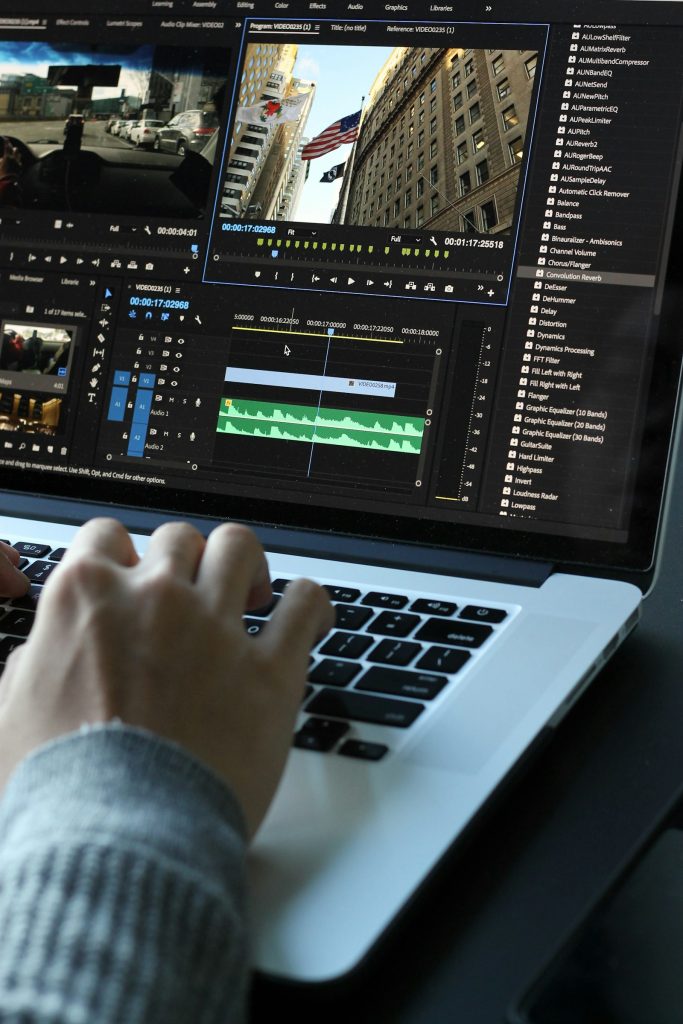
Video is everywhere – YouTube, Facebook, Instagram Reels, TikTok, online courses and company websites. Knowing how to edit video helps you grow your own channel and opens the door to one of the fastest-growing freelance services. You do not need expensive software to start: several powerful free tools are enough to learn the craft and produce professional results.
This guide introduces the best free tools, explains a simple editing workflow, covers the core skills (cutting, audio, captions, colour, exporting) and gives you practice projects to build confidence.
Quick overview
- Free tools: CapCut (desktop and mobile), DaVinci Resolve (free version), Shotcut, and built-in phone editors.
- Core skills: organising footage, cutting, pacing, audio cleanup, music, captions, basic colour correction and exporting.
- Hardware: a mid-range computer works for basic edits; heavier projects need more RAM and a better processor.
- Practice: edit short projects repeatedly – variety builds skill.
- Path to earning: your own content or freelance editing services.
Choosing free software
| Tool | Platform | Best for | Notes |
|---|---|---|---|
| CapCut | Mobile, desktop | Short-form social videos, captions, templates | Easy to learn; check terms and export settings |
| DaVinci Resolve (free) | Desktop | Professional editing, colour grading, audio | Powerful; needs a capable computer |
| Shotcut | Desktop | Simple, open-source editing | Lightweight |
| Phone built-in editors | Mobile | Quick trims | Limited features |
Start with one tool and learn it deeply before switching.
Who this guide is for
Beginners who want to edit videos for their own channel or page, and aspiring freelance video editors. See video editing as a freelance service for the business side when you are ready.
What you need
- A computer (or smartphone for mobile editing).
- Headphones for audio checking.
- Free editing software.
- Practice footage (your own recordings or free stock footage with proper licences).
- Free music from licensed libraries such as the YouTube Audio Library.
A simple editing workflow
Step 1: Organise your files
Create folders: Footage, Audio, Music, Graphics, Exports. Name files clearly. Organisation saves hours.
Step 2: Watch and select
Review footage and note the best takes. Delete or ignore unusable clips.
Step 3: Build a rough cut
Place clips on the timeline in order. Remove long pauses, mistakes and repetition. Focus on story and clarity, not effects.
Step 4: Refine pacing
Tighten cuts so the video flows. For talking-head videos, jump cuts can remove pauses. For tutorials, keep enough time for viewers to follow.
Step 5: Clean up audio
- Normalise voice levels so they are consistent.
- Reduce background noise with built-in tools.
- Add music at a low volume under speech.
- Check with headphones.
Step 6: Add captions and text
Captions improve accessibility and engagement, especially for social media viewed without sound. Many tools auto-generate captions – always check and correct them.
Step 7: Basic colour correction
Adjust exposure, contrast and white balance so footage looks natural and consistent between clips.
Step 8: Add B-roll and graphics (sparingly)
Cutaway footage, screenshots, simple lower thirds or zooms help explain points. Avoid excessive transitions and effects.
Step 9: Export correctly
| Platform | Typical settings |
|---|---|
| YouTube (long-form) | 16:9, 1080p or higher, common frame rates (for example 24/25/30 fps) |
| Shorts / Reels / TikTok | 9:16 vertical, 1080×1920 |
| Facebook feed | 1:1 or 4:5 often work well |
Use high-quality settings and check the final file before uploading.
Practice projects (build a mini portfolio)
- Talking-head video: record yourself for five minutes and edit it to three tight minutes with captions.
- Tutorial: screen-record a software task and edit with zooms and text.
- Short-form reel: a 30-second vertical video with captions and music.
- Travel or event montage: cut to music using your own footage.
- Before/after: edit raw footage and show the improvement.
Tools and resources
- Free licensed music: YouTube Audio Library.
- Free stock footage: reputable free stock sites with clear licences.
- Tutorials: official learning resources for DaVinci Resolve and CapCut, and recognised YouTube educators.
How video editing leads to income
- Your own content: better editing improves viewer retention on your channel.
- Freelance editing: YouTubers, businesses and coaches pay for editing – see our freelance video editing guide.
- Templates and presets: sell editing templates or LUTs once skilled.
How you get paid (as a freelancer)
Through marketplaces (Fiverr, Upwork) with withdrawals to Payoneer or local banks, or direct clients via legal international transfers. See our payments guide.
A worked example (hypothetical)
Mahin records a five-minute video explaining his favourite study techniques. His first edit is 4 minutes 50 seconds – barely changed. After learning to remove pauses and repetition, he cuts it to 2 minutes 40 seconds, adds captions, a few text highlights and low background music. The difference is dramatic: the edited version feels professional and focused. He repeats the process with four more practice projects and builds a small portfolio.
Common mistakes
- Using too many transitions and effects.
- Loud music drowning out speech.
- Ignoring audio quality.
- Exporting in the wrong aspect ratio.
- Using copyrighted music.
- Not backing up project files.
Risks and safety
- Copyright claims from unlicensed music or clips.
- Data loss without backups.
- Software from unofficial sources may contain malware – download only from official websites.
Pros and cons of free tools
| Pros | Cons |
|---|---|
| No cost to start | Some features limited in free versions |
| Professional results possible | Learning curve for advanced tools |
| Large tutorial communities | Hardware demands for heavier editing |
Realistic expectations
Basic editing skills can be learned in a few weeks of regular practice. Becoming fast and polished takes months of projects. Your first edits will be slow – speed comes with repetition.
Your 21-day learning plan
| Days | Focus |
|---|---|
| 1-3 | Install one tool; learn interface and cuts |
| 4-7 | Talking-head practice project |
| 8-11 | Audio cleanup and captions |
| 12-15 | Tutorial project with zooms and text |
| 16-18 | Vertical short-form edit |
| 19-21 | Colour correction and export settings; review all projects |
Key terms explained
- Timeline: where you arrange clips in order.
- Rough cut: first version with the main structure.
- B-roll: supplementary footage that supports the main story.
- Aspect ratio: shape of the video frame (16:9, 9:16).
- Frame rate: frames per second in a video.
Beginner tips
- Learn keyboard shortcuts early.
- Edit for story first, effects last.
- Always check audio with headphones.
- Save and back up regularly.
Advanced tips
- Learn colour grading basics in DaVinci Resolve.
- Build templates for recurring video formats.
- Study pacing in successful videos in your niche.
- Learn motion graphics basics.
Frequently asked questions
What is the best free video editor for beginners?
CapCut is easy for short-form content; DaVinci Resolve is powerful for longer projects if your computer can handle it.
Can I edit videos on my phone?
Yes, mobile editors work well for short social videos.
Do I need a powerful computer?
Basic editing works on mid-range machines; high-resolution and effects-heavy editing need more power.
Where can I get free music legally?
The YouTube Audio Library and other licensed free music sources.
How long does it take to edit a video?
It varies by length and complexity. Beginners often spend several hours per short video at first.
Final step
Install one free editor today and record a five-minute practice video. Edit it down to three minutes with captions. More guidance is in our YouTube guides and digital skills guides.